App updates2 min read
Play Your Own Music Files on iPhone Offline with TuneJar
Play your own music files on iPhone offline with TuneJar: import the audio files you already own and listen without a streaming connection, on iPhone and iPad, with a player that takes its colour from the album art.
You have albums you collected over years, sitting on a computer or an older phone. After moving to an iPhone, those tracks can feel stranded: streaming needs a connection, and digging out a particular recording is rarely quick. Play your own music files on iPhone offline is the practical answer to that problem — the music is yours, so listening to it should not depend on being online.
TuneJar is an offline music player for iPhone and iPad, built around your local files. Import the audio you already own, and you can listen offline. You browse by album cover, open an album page to listen, and search by song, artist, or album when you know what you want.
How do I get my music files into TuneJar?
Use whichever route is closest at hand. From the Files app you can import single audio files, whole folders, or ZIP archives. From a computer, the built-in Wi-Fi upload page moves albums over without a cable. If you prefer a cable, copy files through Finder or Apple Devices and then scan the USB inbox inside the app. If you import the same audio twice, TuneJar recognises it by content, so your library does not fill up with copies.
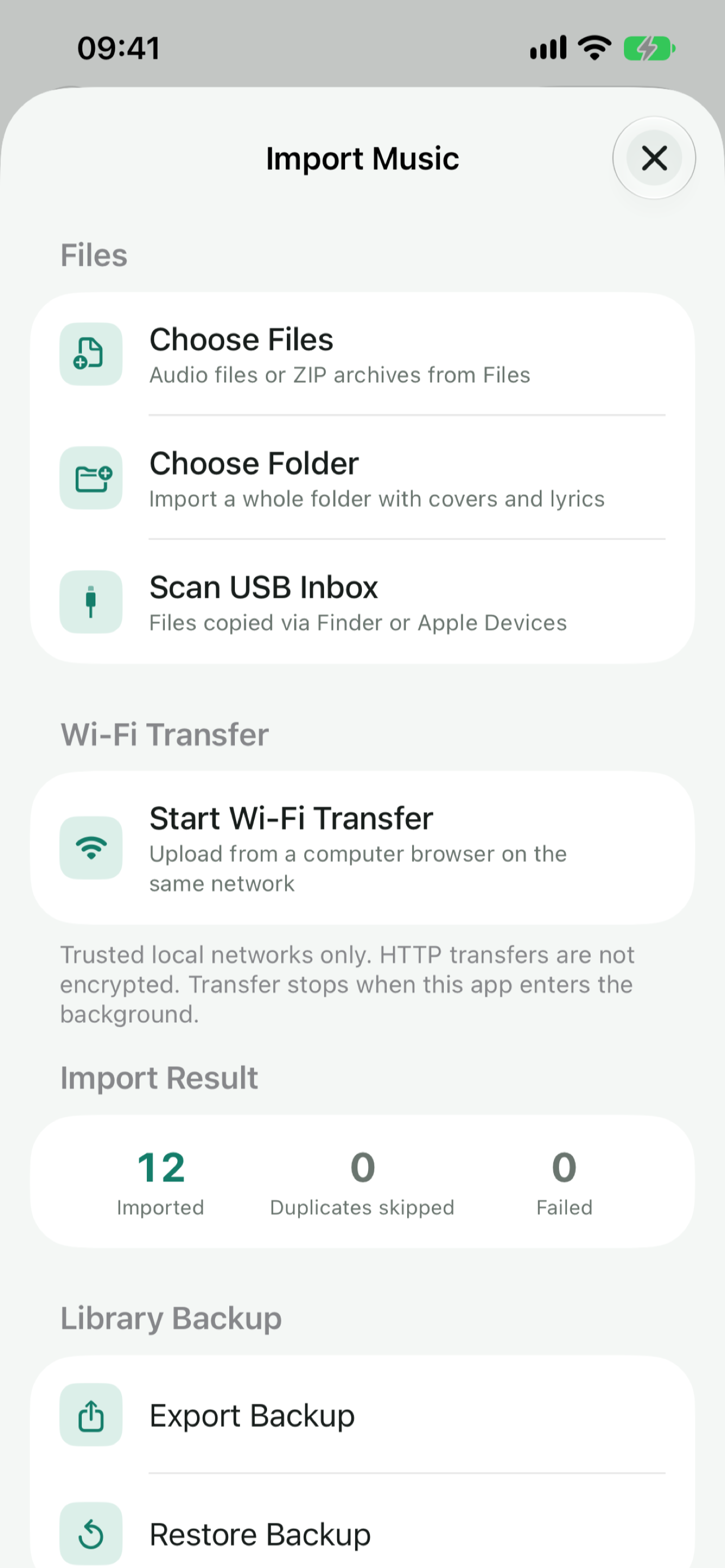
Wi-Fi transfer needs a trusted local network and local network permission, and the app has to stay in the foreground. Sessions expire after a while, so keep an external backup of music that matters before you transfer it — a small habit that saves trouble later.
What does offline listening feel like?
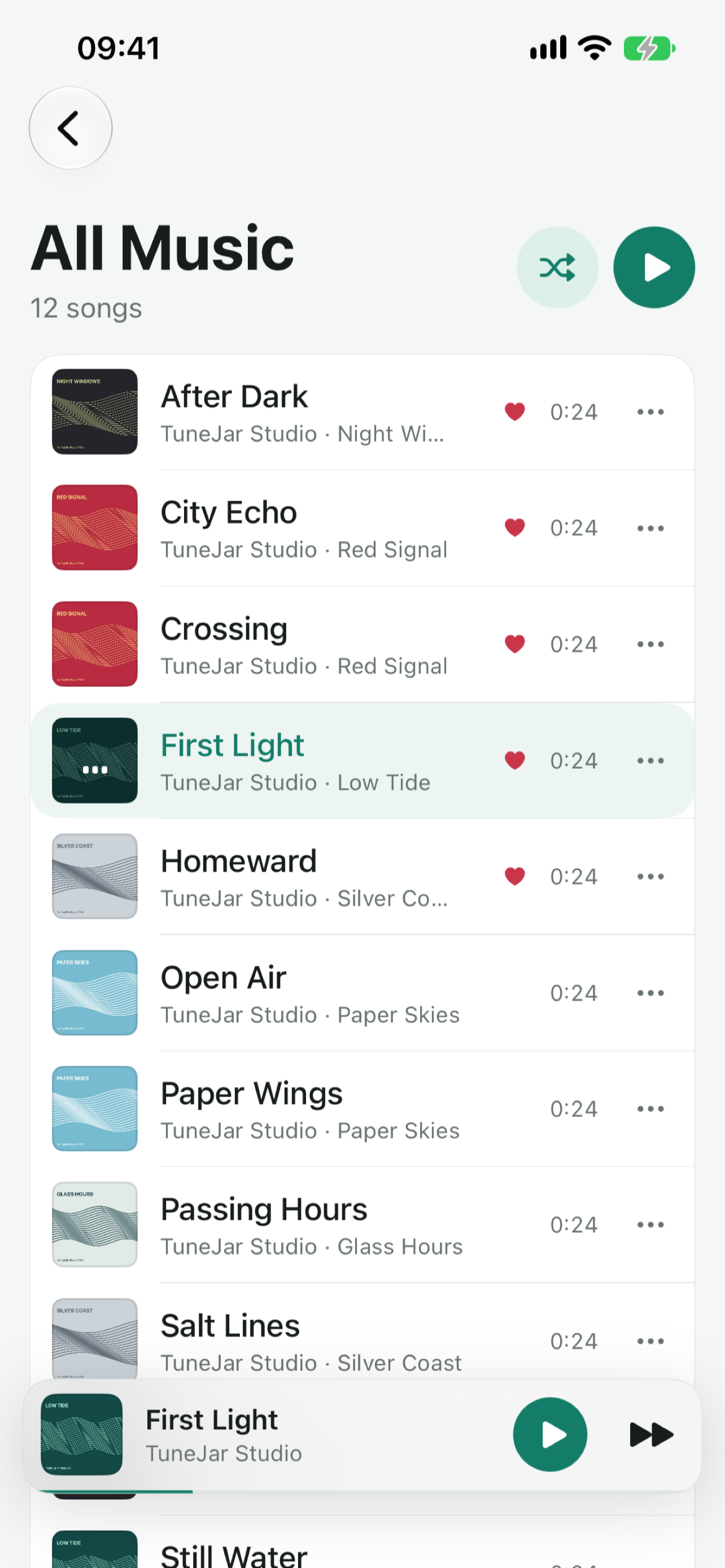
Once your music is in, listening feels like browsing your own shelves. Open an album cover for its album page, mark songs as favourites, arrange your own playlists, queue a song to play next, or shuffle an album or a list. A floating mini player keeps playback within reach without pulling you out of the page you are on. On iPad the layout has more room, with a persistent sidebar and a Now Playing column on wide screens.
The player takes its colour from the album art, and lyrics, the queue, and audio details sit in one place; imported LRC lyrics follow the song. You can play local FLAC, MP3, M4A, WAV, and other audio the system can decode, though compatibility depends on the file and the system decoder. Your playback position is saved when you leave, without music starting automatically when you reopen the app. Background audio and the system AirPlay picker are supported.
What happens to my original files?
Imported songs are stored as independent local copies in the app, and you can export a ZIP backup of your library with its audio and library metadata. Importing a song, or deleting one inside TuneJar, does not modify the originals on your computer. Your collection stays where it was; the phone simply carries a copy you can listen to anywhere.
Start with one album you reach for most often. Bring it in by the route that feels easiest, listen through it once from cover to lyrics, and then decide how much of the rest of your collection to move over.

TuneJar
Bring the FLAC and MP3 albums you own to iPhone and iPad and play them offline.

 Scan with your iPhone