Guides3 min read
How to Plan a Delivery Route With Time Windows: Set Your Stop Time First
Deliveries with time windows don't need guesswork: set your average stop time, vehicle and break in DropTrail, and the optimizer lines up each stop's arrival time around its window.
It's 7 a.m., run sheet on the passenger seat: twenty addresses, three before 10 a.m. only, two not open until after 2, one noting "lunch 12 to 1." Order by distance and by the third stop the route is fine and the timing is already wrong. That's what makes a delivery route with time windows hard: it has to land at the right hour, not just run short.
The short answer: don't start by ordering the stops. Tell DropTrail how long each stop takes first. Set "Average time at stop" to what a stop really costs you, pick your vehicle, avoid tolls or not, and the optimizer works out a route respecting time windows, pickups before deliveries and a break — with an arrival time on every stop.
Why time windows break a simple route
Without time windows, route planning has one job: find the shortest path. Add a window and a second ruler appears: one customer before 10, another not open until 2, so the order can't follow distance alone. The early stop might be across town, the late one next door. Order by distance and you'll stand at a closed door at 1:30; order by time and you might cross the city twice.
So the first step isn't the map — it's getting every stop's window and dwell time straight. The window comes from the customer, on the run sheet; the dwell time is yours — parking, finding the door, waiting for a signature.
Set your stop time first: the whole plan stands on this number
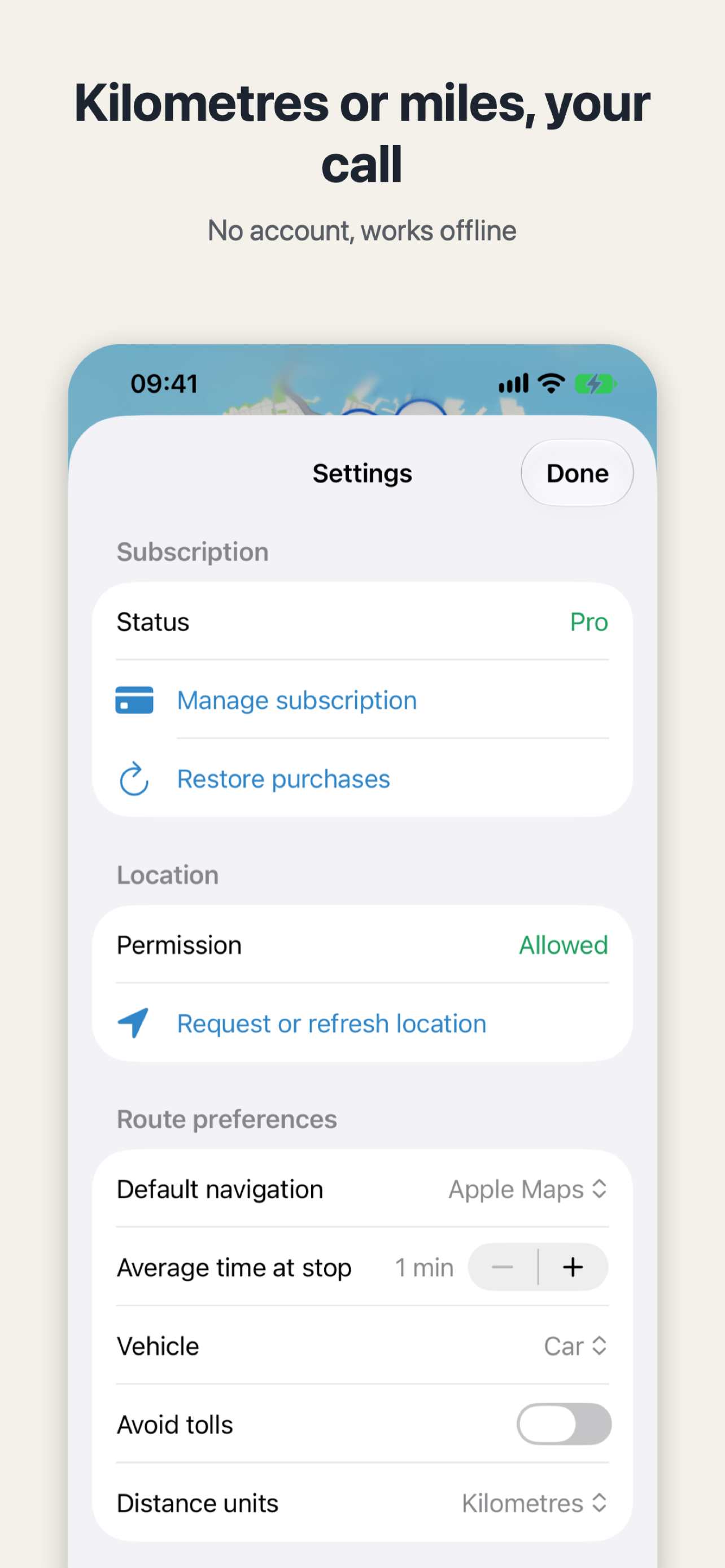
Under "Route preferences" in Settings, "Average time at stop" has plus and minus buttons — the screenshot shows 1 minute, only a default. A lift, a sign-in desk, a customer who counts every parcel — one minute won't do. Curbside handoffs might take less. Set your real rhythm and the arrival times are worth trusting.
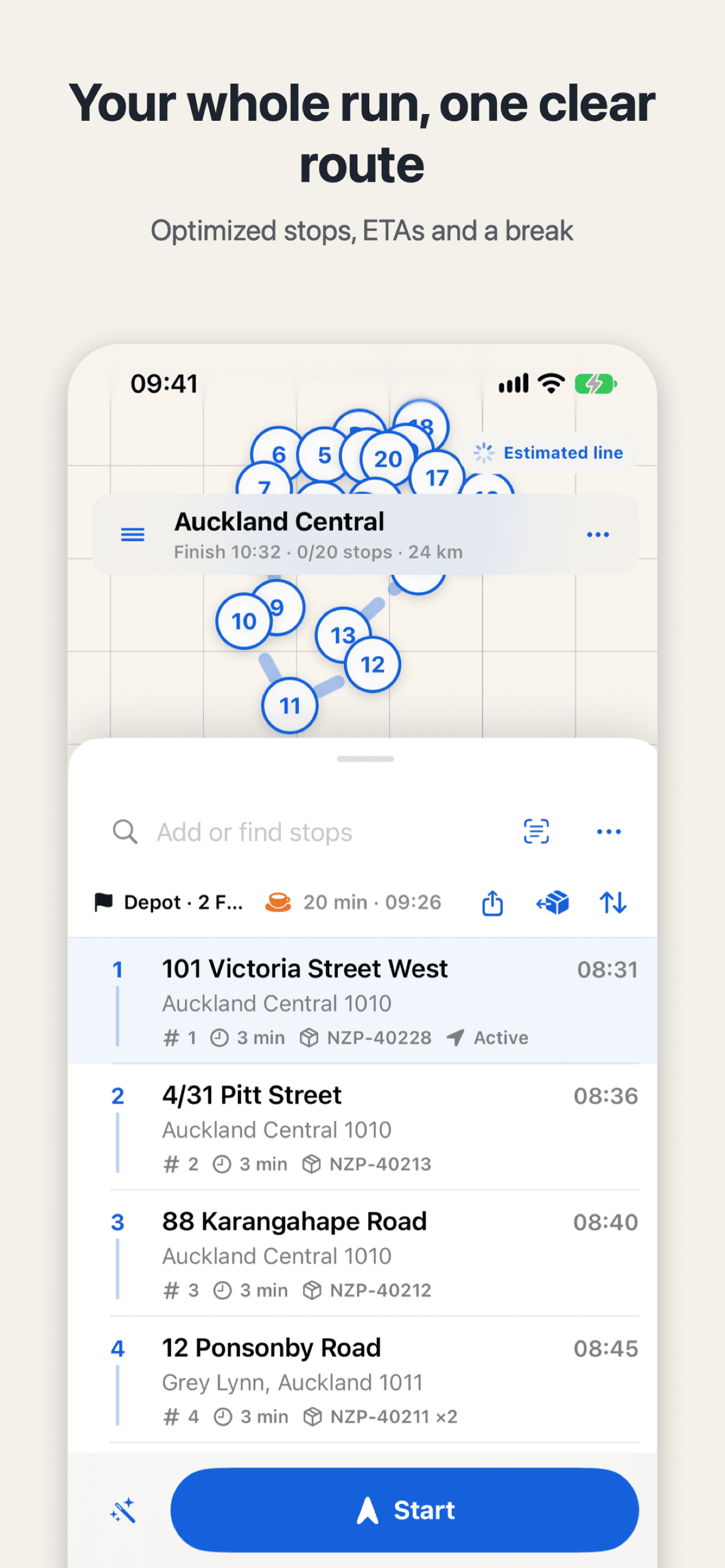
Set the rest on the same page: default navigation, vehicle, avoid tolls, kilometres or miles. They look like preferences, but they decide how accurate the drive times are. Drive times come from Apple Maps, cached for the day; with no signal the app plans on estimates — the stretch marked "Estimated line" is one.
Three things to check before you hit Start
Once the stops are in and you've tapped Optimize, don't drive off yet. Check three things.
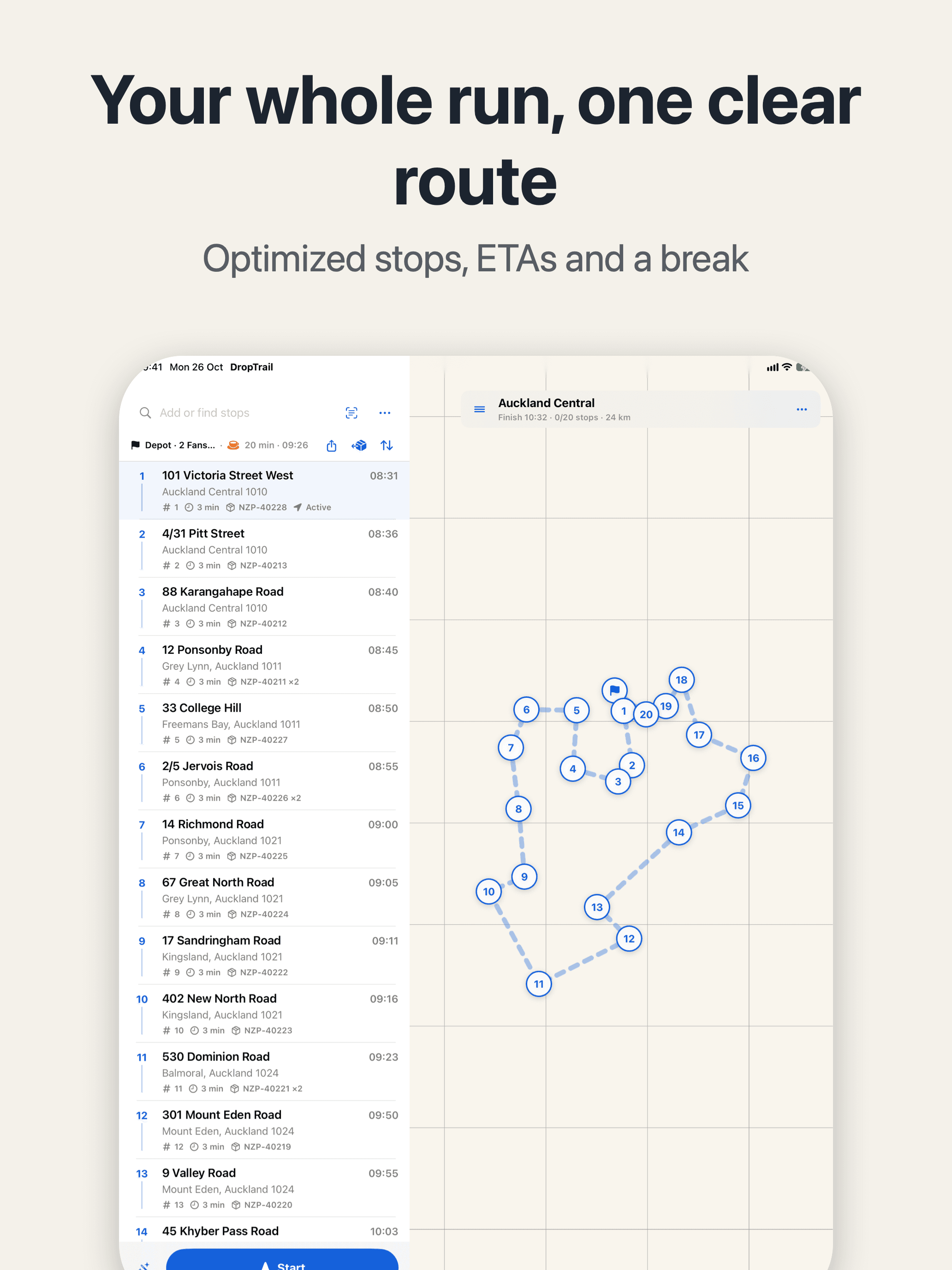
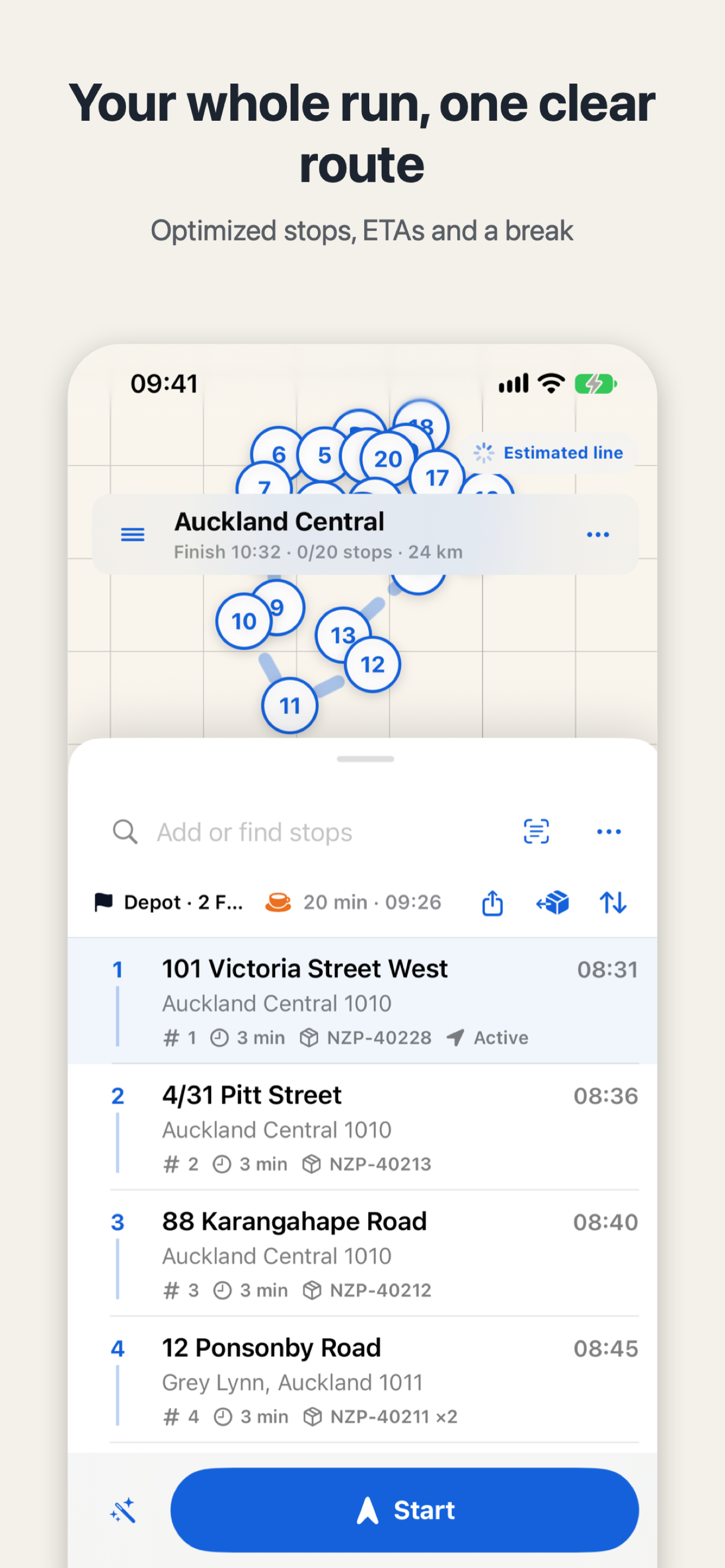
First, the arrival time on every stop. In the screenshot, an Auckland Central run of 20 stops and 24 km finishes at 10:32 — stop 1 at 08:31, stop 2 at 08:36, stop 3 at 08:40. Check them against your run sheet's windows. Exactly 20 stops — the free plan's limit.
Second, the break. In the screenshot there's a 20-minute break at 09:26, shortly after leaving the depot — the optimizer builds it in instead of leaving you to discover at noon that you never stopped.
Third, when the last stop ends. A 10:32 finish means this run is done before lunch — if the windows push it into the afternoon, you'll see it before you leave.
Does the plan still hold once you're driving?
Yes. The current-stop card shows the next stop, its ETA and distance, and one tap opens your navigation app. At the door, Delivered, Skip and Issue are on the card. A stop that doesn't work out gets its reason recorded, and you can retry it later as the next attempt.
Tap Delivered while you're far from the address and DropTrail warns you — no window is worth signing for a parcel from the next street over.
If your day starts with a paper run sheet or a chat message, paste the whole sheet in at once and check it row by row before you plan — no typing stops one by one.
Tonight, take a minute to set "Average time at stop" to your real number. Tomorrow, import the sheet, tap Optimize, and read the arrival times against the windows. Whether the day can run on time, you'll know before you leave.

DropTrail
The offline route book for independent couriers and owner-drivers.

 Scan with your iPhone