Guides3 min read
Paste a Run Sheet to Import Delivery Stops in DropTrail
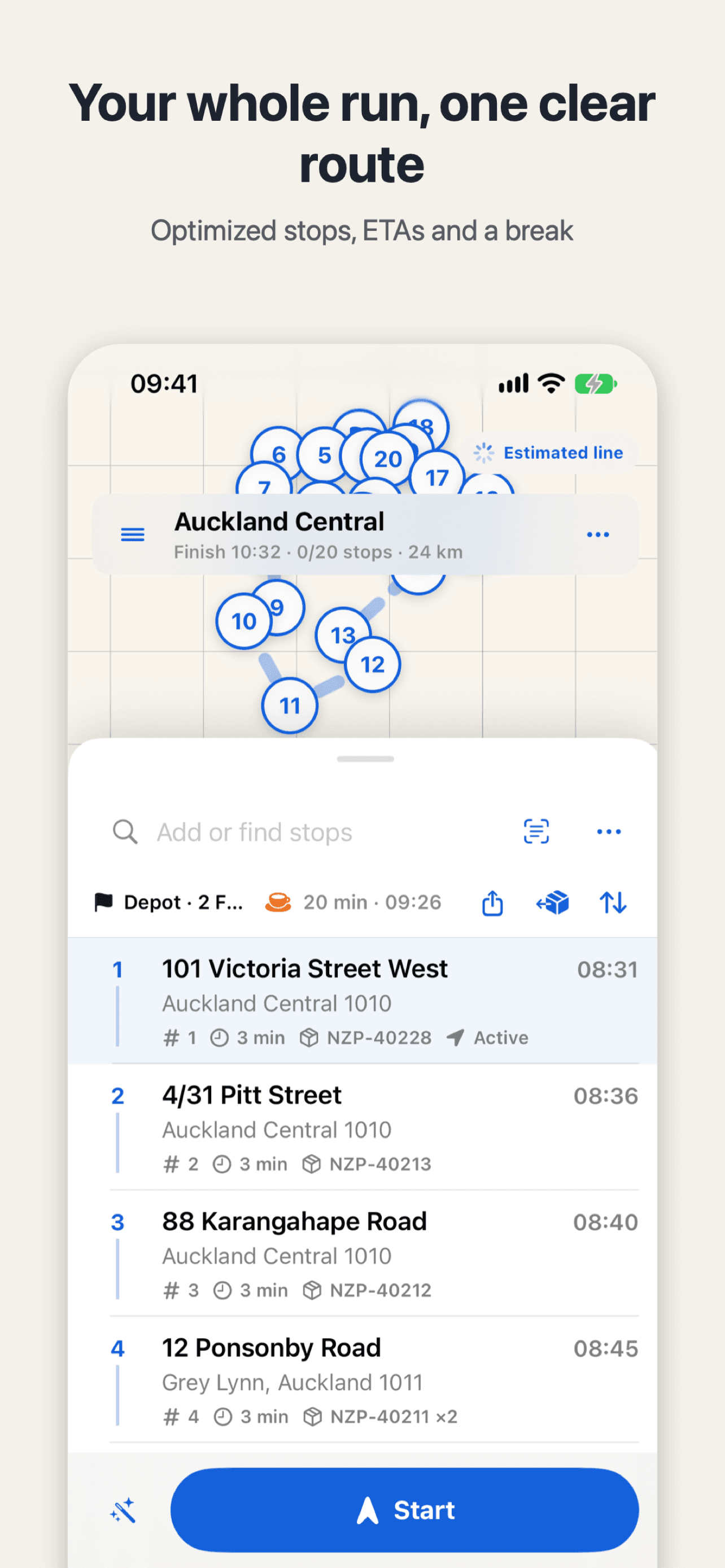
Paste a run sheet or chat message into DropTrail and it picks out addresses, package IDs, units, phone numbers and time windows. Check every row once, tap Import, and the whole route is ready — no typing stop by stop.
It's 7:30 in the morning, the van is parked outside the depot, and your phone already holds today's run sheet: dozens of addresses, some with package IDs and phone numbers mixed in, plus two address changes that came through the group chat. Type them into a route planner one by one and half an hour is gone before the engine starts. Pasting a run sheet to import delivery stops is how you get that half hour back.
The short answer: open DropTrail's Package intake, switch to the Paste tab, and paste the whole run sheet or chat message in at once. It breaks the text into stops — addresses, package IDs, units, phone numbers and time windows picked out automatically — and lists them under To import for you to check row by row. When you're happy, tap Import and the stops are in your route.
How to paste a run sheet in
Open Package intake in DropTrail. There are three tabs at the top: Address, Scan and Paste — Paste is the one you want. Drop the whole run sheet in as it is; there is no need to tidy it up first or split it into lines. A block of text from the group chat works the same way.
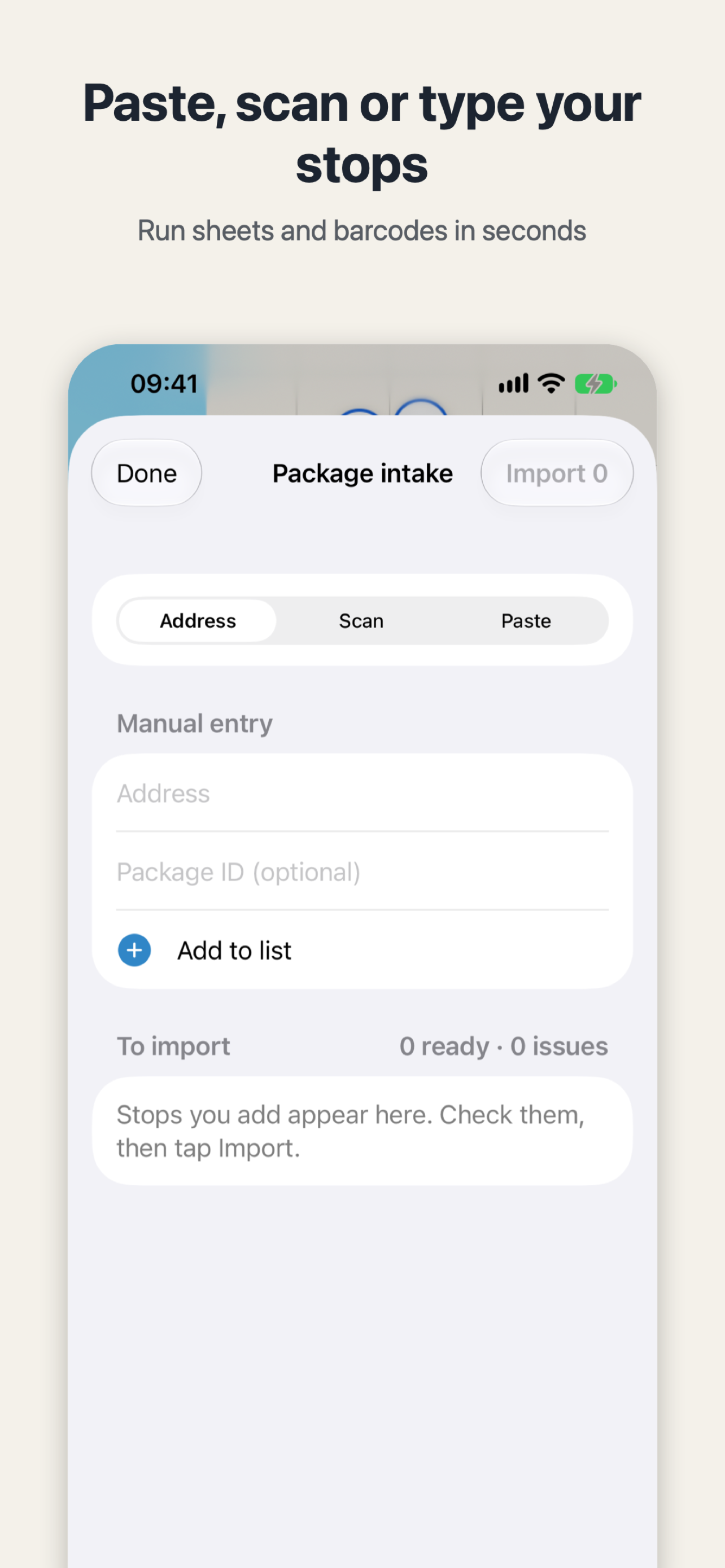
Before you tap Import, look at the To import list underneath. Every row is one stop, with a count of how many are ready and how many have issues — that is the checking step, and it is there on purpose.
What to check before you import
DropTrail flags stops it cannot find instead of guessing a location for them. That matters more than it sounds: one stop pinned to the wrong street means driving there, finding nobody, turning around and phoning the customer — one delivery's worth of time, gone.
Check three things in particular: the unit is right — an address like 2/15 Smith St with the wrong unit is the wrong door; the time window was picked up — some customers only accept deliveries in a certain window, and the optimizer plans around that; and the phone number and name landed on the right row — phone numbers in run sheets often sit next to the address, and a number on the wrong row means nobody to call when you're at the gate.
Rows with a problem are flagged on their own; fix them and import. Rows without one go straight in when you tap Import.
What it picks out of a block of text
A run sheet usually mixes six things together: addresses, package IDs, units (2/15 Smith St, Apt 4), phone numbers, names and time windows. Pasting pulls each one into its own field. The package ID pays off later: at the door, one glance tells you whether this parcel belongs to this stop, without digging the run sheet out again.
The free version allows up to 20 stops per route; if you have more, split them across two routes. If your run sheet is a photo of paper labels or a CSV file, DropTrail Pro can import from label photos and CSV files — a different way in, for another day.
Once the stops are in and the order is set, you can drive them one by one. And when the day is done, DropTrail's day card turns the delivered and failed stops, distance and time per stop into a picture with no customer details on it, ready to send to the depot or a client without redacting anything.
Tomorrow morning, when the run sheet lands, don't start typing. Paste the whole thing in, check it row by row, tap Import — and when the first address shows up in your route, you'll know exactly where that half hour went.

DropTrail
The offline route book for independent couriers and owner-drivers.

 Scan with your iPhone