App updates3 min read
Courier Route Planner App DropTrail: Share Your Day Without Sharing Customer Details
A courier route planner app should let you show a day without handing over customer details: DropTrail 2.1 adds a day card to the route summary showing only delivered and failed stops, distance, and time per stop.
The last drop is done and the van is parked, and you want to tell someone the day is finished. Your finger hovers over the screenshot button, then stops. The run sheet carries customer addresses and names, and a proof photo can show a doorway. Once those go out, you cannot take them back. A courier route planner app has to handle that awkward moment at the end of the day, and that is what DropTrail's new card is for.
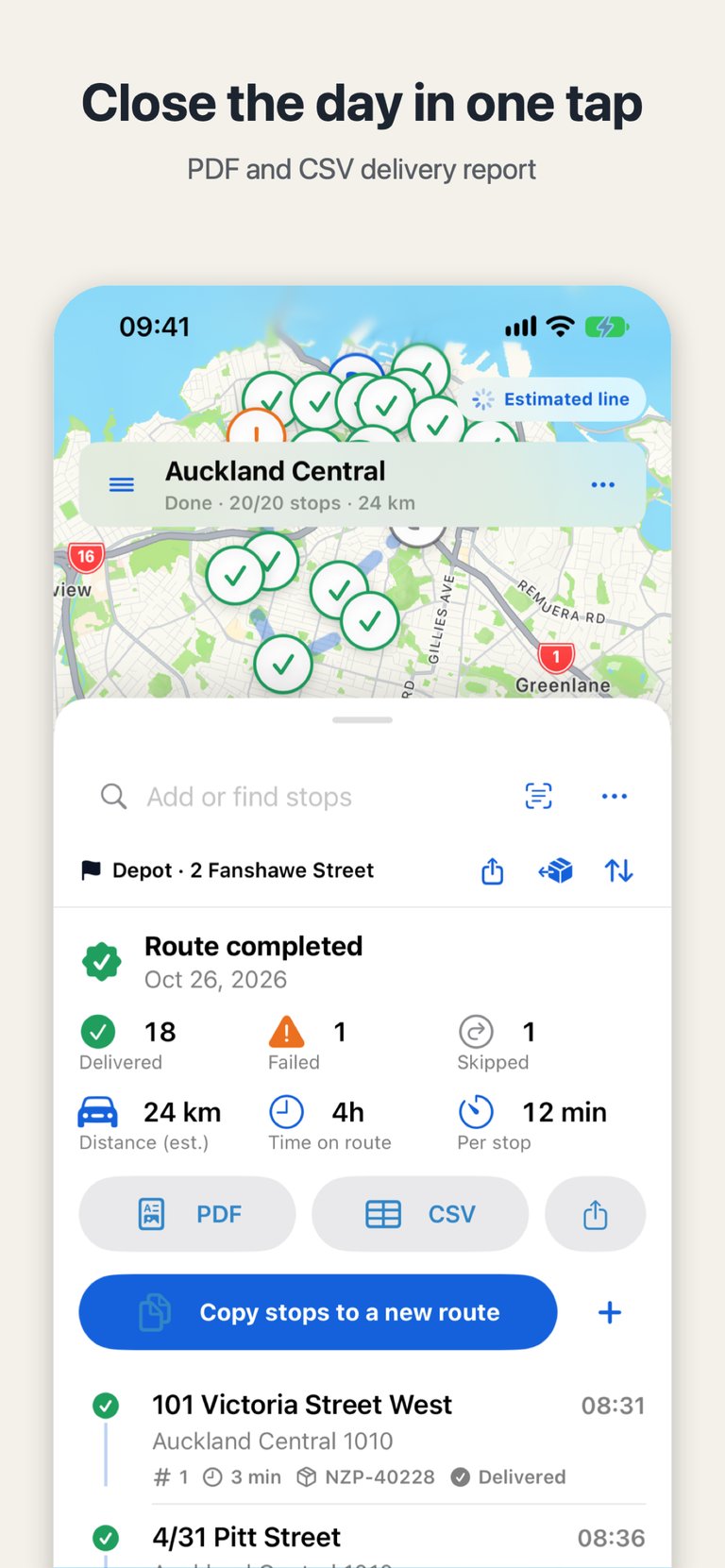
The answer is simple: DropTrail 2.1 adds a day card. When you finish a route, open the route summary and you will find the card next to the PDF and CSV export. What you share is a picture showing only the stops delivered and failed, the distance, and the time per stop. Addresses, customer names, and proof photos are never on the card. Version 2.1 also brings small fixes and improvements, and it is listed on the App Store as 2.1.0.
What does a courier route planner app put on the day card?
The card says how the day went, not whose house you visited. How many stops were delivered, how many failed, how far you drove, and how long each stop took — together those numbers let someone grasp a day's work without reconstructing any customer's details. That matters most for an independent courier: there is no company template standing between you and the picture you send, so the picture itself has to draw the line.
How does the day lead up to the day card?
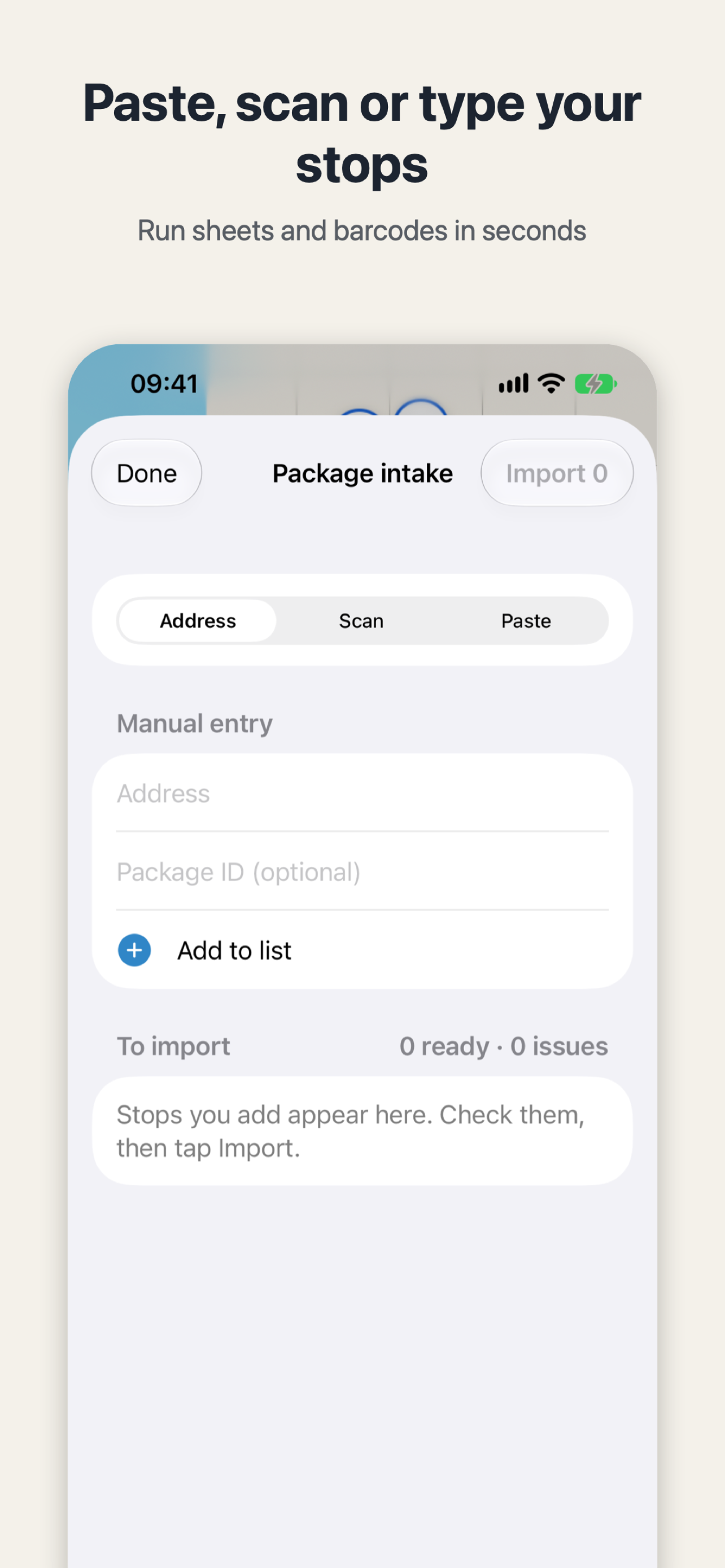
The card does not come out of nowhere; it is one page of the route summary, and the summary is built up over the whole day. It starts in the morning, when a pile of addresses becomes one route. You can paste a run sheet or a chat message, type stops, or scan barcodes, and the app picks up package IDs, units, phone numbers, names, and time windows automatically. Before importing, you check every row, and stops that cannot be found are flagged rather than guessed.
The optimizer plans around time windows, first and last stops, pickups before deliveries, and a break. Drive times come from Apple Maps and are cached for the day, with estimates when you are offline. The free version allows unlimited routes with up to 20 stops per route. On the road, one tap hands off to Apple Maps, Google Maps, or Waze, and you come back to the next stop. The current-stop card shows the ETA, distance, access code, package, and notes, and warns if you mark a stop delivered far from its address. Every drop leaves a placement and a proof photo, and a failed or skipped stop can carry its reason and be tried again later as the next attempt.
What should you check before you share it?
Before you send the card, match the numbers against your memory of the day: do the delivered and failed counts line up, and do the failed or skipped stops have a reason recorded and a next attempt planned? The card does not explain itself, so the numbers need to be right before they go out. Keep one distinction clear as well: the day card shows how the day went, while the PDF and CSV export beside it is the route for a report you can file away — that export is a Pro feature, according to the store listing.
On your next run, skip the screenshot of the run sheet when the last stop is done. Open the route summary, look at the day card, and then decide what to send. What goes out should be a day's work, not a customer's address.
DropTrail
The offline route book for independent couriers and owner-drivers.

 Scan with your iPhone